> ## Documentation Index
> Fetch the complete documentation index at: https://docs.janus.cards/llms.txt
> Use this file to discover all available pages before exploring further.
# Highlights
## Overview
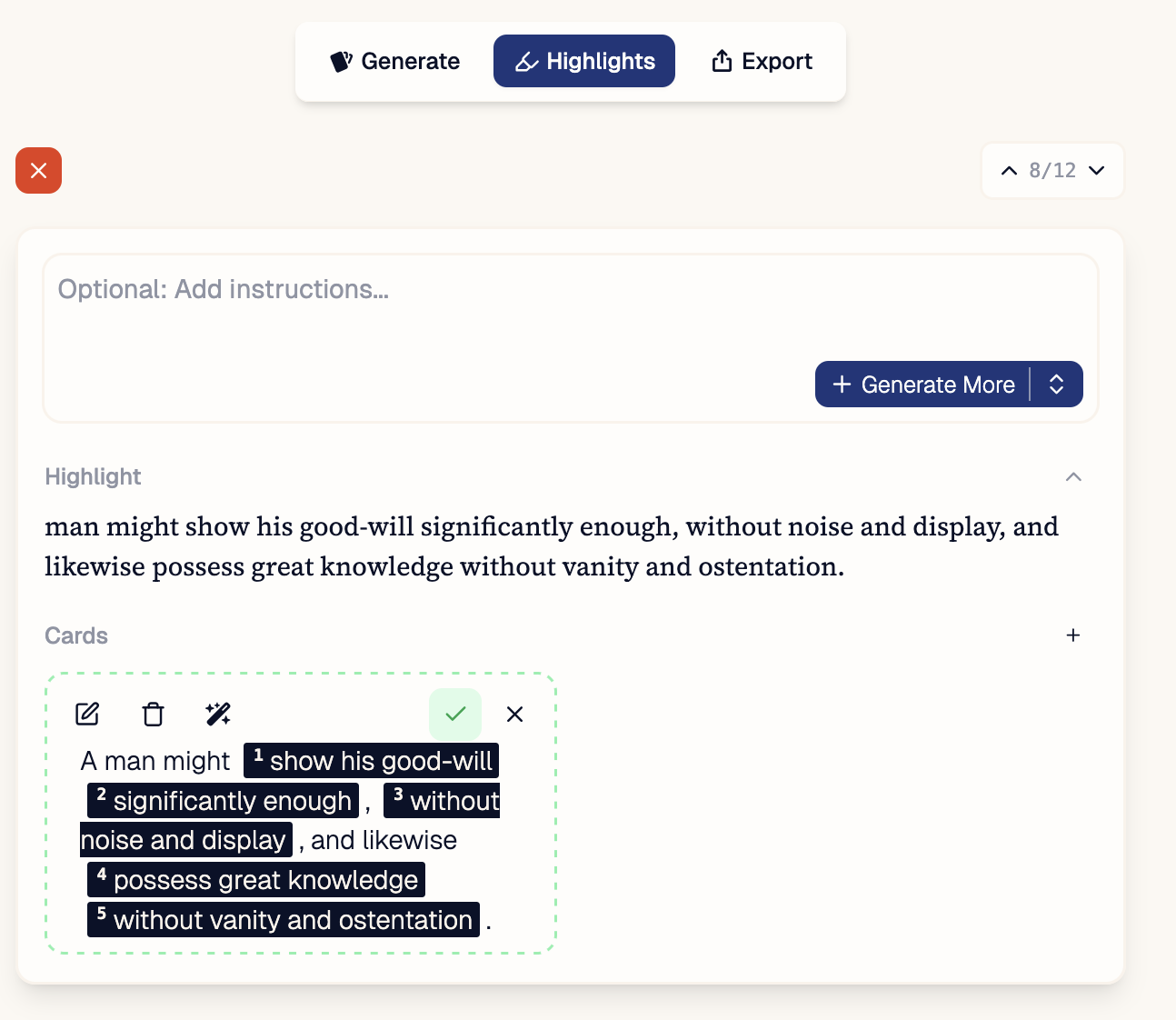
The "highlights" tab lets you see all saved highlights and flashcards, and allows you to edit, delete or generate more.
 ## Navigation
Using the up and down arrows, you can navigate through all saved highlights. The **Document Reader** will scroll to bring the highlight into view. Likewise, selecting a highlight in the Document Reader **will navigate to it in the highlights tab**.
### Seen and Unseen Cards
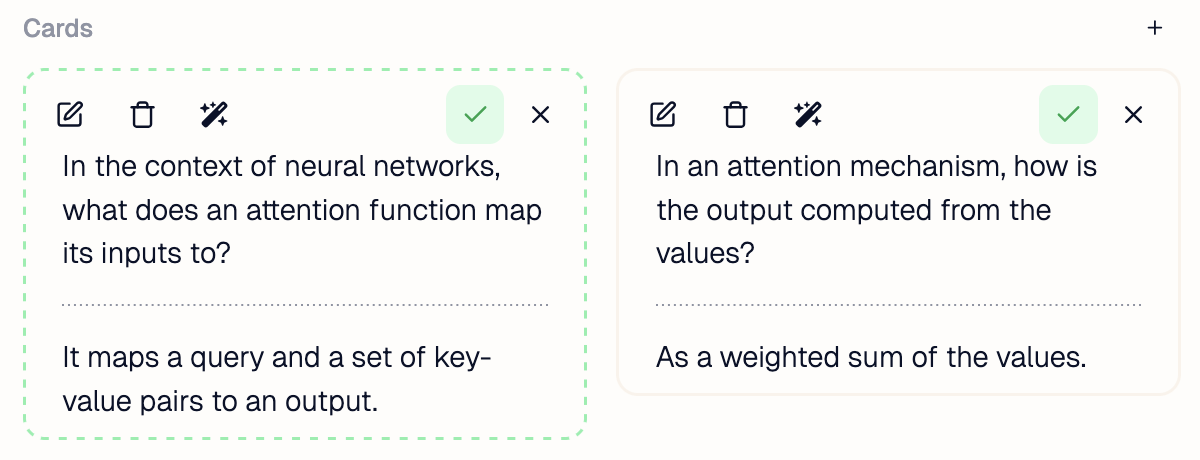
Since the **flashcard writer** and refiner can run in the background, the cards in a saved highlight might change since the last time you inspected it. **Unseen cards have a dashed green border** while seen cards have a regular muted border.
Editing the card, or navigating away from the highlight will **mark the card as seen**.
## Navigation
Using the up and down arrows, you can navigate through all saved highlights. The **Document Reader** will scroll to bring the highlight into view. Likewise, selecting a highlight in the Document Reader **will navigate to it in the highlights tab**.
### Seen and Unseen Cards
Since the **flashcard writer** and refiner can run in the background, the cards in a saved highlight might change since the last time you inspected it. **Unseen cards have a dashed green border** while seen cards have a regular muted border.
Editing the card, or navigating away from the highlight will **mark the card as seen**.
 ## Generating
You can call the **flashcard writer** on each of the saved highlights. See [here](/flashcards/algorithm) for more details on generating new/additional cards as well as tweaking cards in batch, and [Batch improvements](/workflow/notebook/generate#batch-improvements) to learn how the refiner works.
## Edit Commands
These are powerful custom commands that can be run on individual cards to transform them in a predictable way.
To select a command to run, click the **wand icon** and then select the command. The generator will then run and replace that card with one or more new cards.
### Defining New Commands
You can edit and create new commands by going into `Settings > Edit Commands`
## Generating
You can call the **flashcard writer** on each of the saved highlights. See [here](/flashcards/algorithm) for more details on generating new/additional cards as well as tweaking cards in batch, and [Batch improvements](/workflow/notebook/generate#batch-improvements) to learn how the refiner works.
## Edit Commands
These are powerful custom commands that can be run on individual cards to transform them in a predictable way.
To select a command to run, click the **wand icon** and then select the command. The generator will then run and replace that card with one or more new cards.
### Defining New Commands
You can edit and create new commands by going into `Settings > Edit Commands`
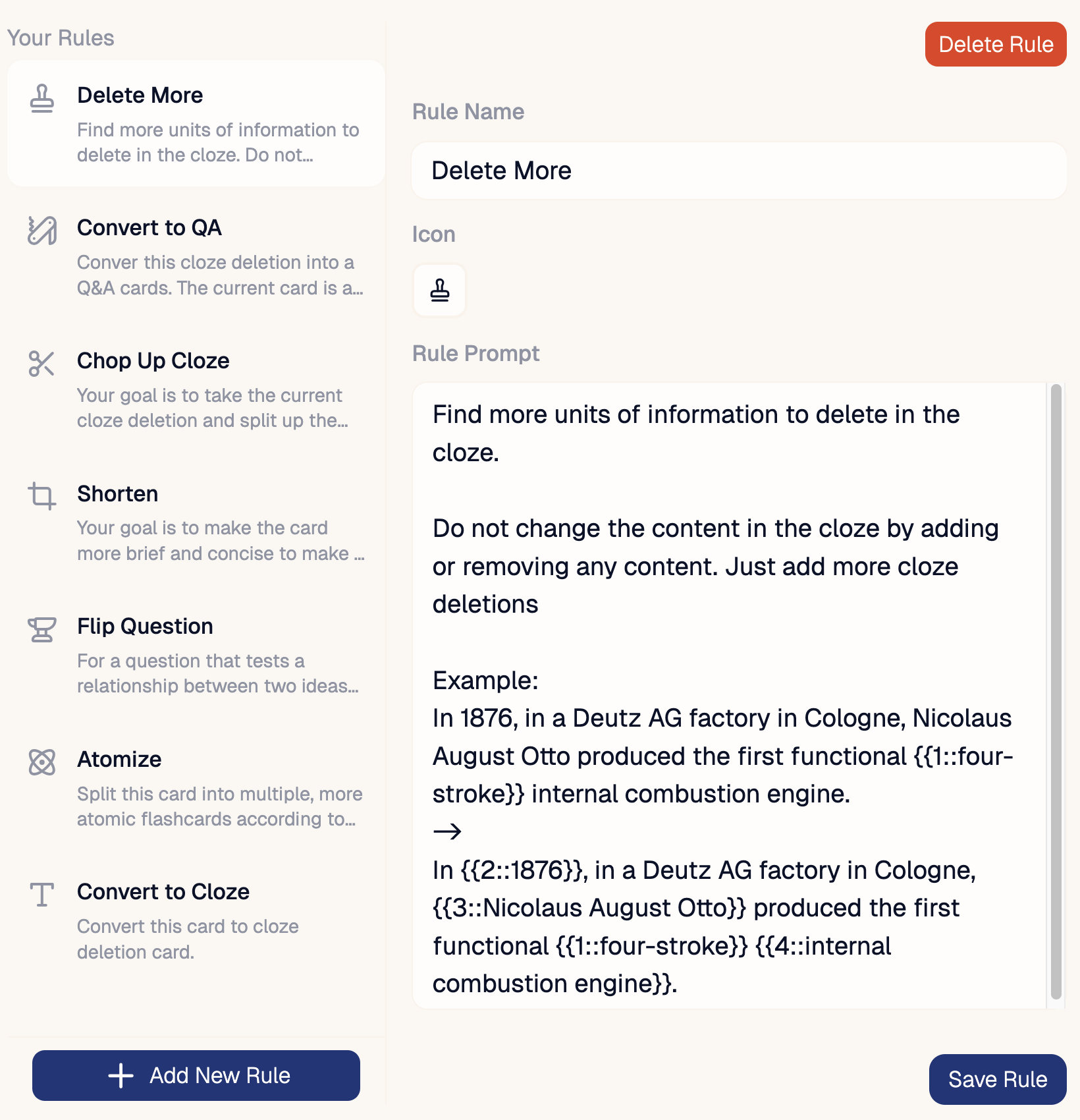 We recommend being very descriptive in your prompts and using examples to get the best results.
## Editing
To manually edit a card, either click the **notepad icon** or the flashcard. This will move the card into **editing mode**.
You can change the content and type of card by formatting it according to the [formatting rules](/flashcards/format).
To exit the editing mode and save the card, click outside the editor. *The card will only be saved if the formatting was valid.*
### Accepting / Rejecting Cards
This feature may soon be deprecated.
If you want to prevent a card from being exported, but not delete it, you can **reject the card** using the **red cross**. By default all cards are **accepted.**
We recommend being very descriptive in your prompts and using examples to get the best results.
## Editing
To manually edit a card, either click the **notepad icon** or the flashcard. This will move the card into **editing mode**.
You can change the content and type of card by formatting it according to the [formatting rules](/flashcards/format).
To exit the editing mode and save the card, click outside the editor. *The card will only be saved if the formatting was valid.*
### Accepting / Rejecting Cards
This feature may soon be deprecated.
If you want to prevent a card from being exported, but not delete it, you can **reject the card** using the **red cross**. By default all cards are **accepted.**