> ## Documentation Index
> Fetch the complete documentation index at: https://docs.janus.cards/llms.txt
> Use this file to discover all available pages before exploring further.
# Overview
Once you're happy with the cards you've created, you're ready to export the deck to your favorite spaced repetition app.
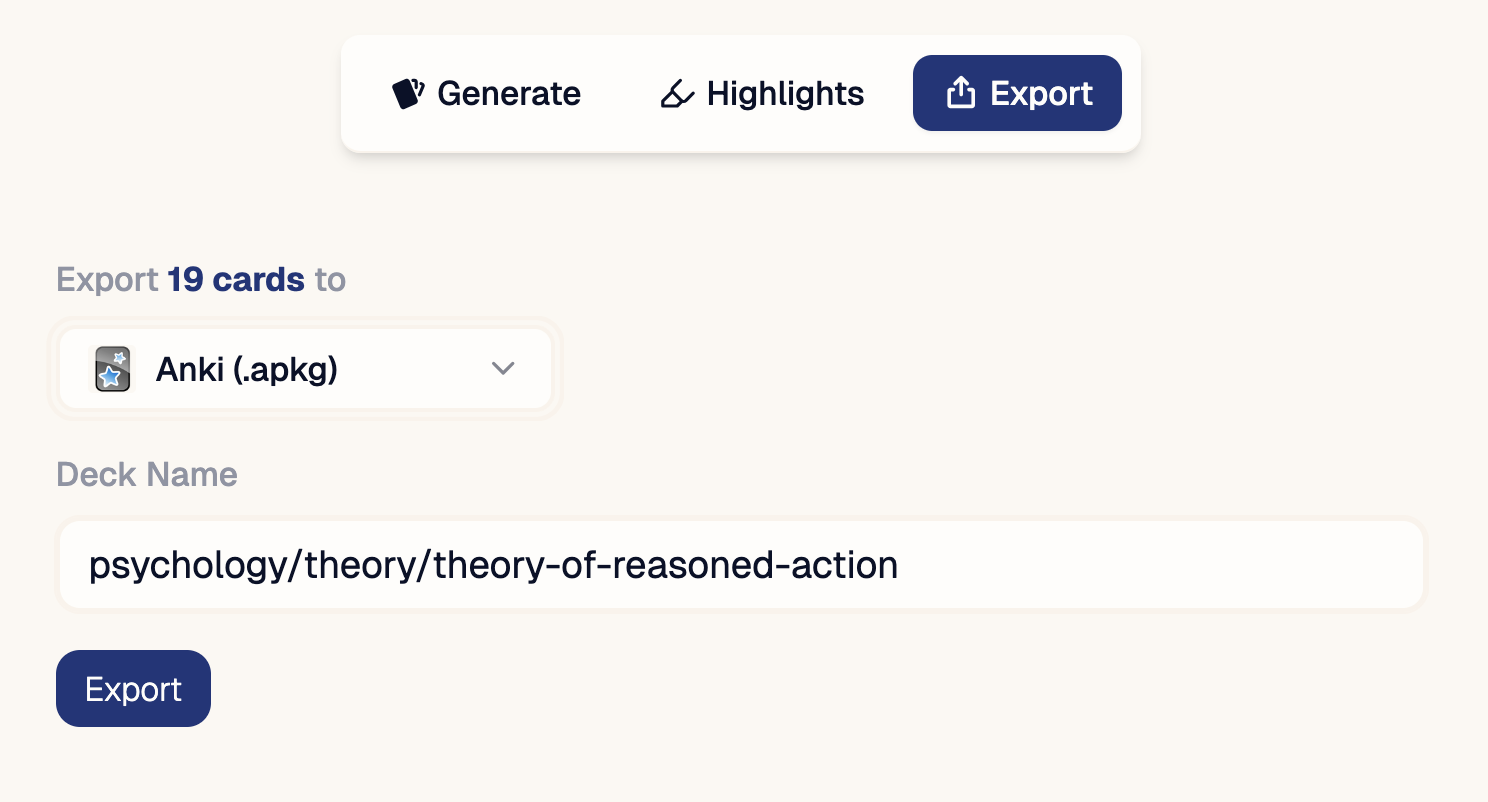 ## Supported Integrations
## Deck Name
All flashcards get saved into a single deck in your collection. Most apps support **nested decks** or **sub-decks** where you can create a hierarchy of decks.
Sub-decks can be defined by creating a slash (`/`) separated path from the outermost deck to the innermost deck: `//`
For example, if you wanted to create a deck called `Anatomy` inside a parent deck `Medicine`, you need to name your deck `Medicine/Anatomy`.
**All exported flashcards go in the sub-deck**.
## How Exporting Works
### Conversion
Janus converts flashcards to whatever format the spaced repetition app needs. Common formats include markdown and html.
### Deck Deduplication
Some integrations can export directly into an existing deck, as well as see what cards already exist. If you export multiple times to the same deck, Janus will **ensure that no duplicates are added**.
## Supported Integrations
## Deck Name
All flashcards get saved into a single deck in your collection. Most apps support **nested decks** or **sub-decks** where you can create a hierarchy of decks.
Sub-decks can be defined by creating a slash (`/`) separated path from the outermost deck to the innermost deck: `//`
For example, if you wanted to create a deck called `Anatomy` inside a parent deck `Medicine`, you need to name your deck `Medicine/Anatomy`.
**All exported flashcards go in the sub-deck**.
## How Exporting Works
### Conversion
Janus converts flashcards to whatever format the spaced repetition app needs. Common formats include markdown and html.
### Deck Deduplication
Some integrations can export directly into an existing deck, as well as see what cards already exist. If you export multiple times to the same deck, Janus will **ensure that no duplicates are added**.